How to Use Tags vs Custom Fields vs Segments in Marketing Automation (Decision Framework)
You’ve just imported 5,000 contacts into your marketing automation platform. Now you need to organize them, track their behavior, and send personalized campaigns. But should you use tags, custom fields, or segments? Most small business owners make costly mistakes here that mess up their entire automation strategy. Learn more about lead segmentation strategies.
Understanding when to use tags vs custom fields vs segments isn’t just about keeping things tidy. It directly impacts your ability to personalize messages, trigger the right automations, and ultimately convert more leads into customers. Get this wrong, and you’ll waste hours cleaning up data instead of generating revenue. Learn more about automate lead enrichment.
This guide gives you a clear decision framework with real examples so you can organize your contacts properly from day one. You’ll learn exactly when each method works best and how to combine them for maximum marketing power. Learn more about drip campaign architecture.
What Are Tags, Custom Fields, and Segments?
Before diving into when to use each method, let’s define what they actually are. These three features appear in nearly every marketing automation platform, but they serve completely different purposes. Learn more about behavior-based automation triggers.
Tags are simple labels you attach to contacts. Think of them like sticky notes you place on a contact record. You might tag someone as “webinar-attendee” or “interested-in-pricing.” Tags are incredibly flexible because you can add or remove them instantly based on actions or behaviors. Learn more about marketing automation integration stack.
Custom fields are structured data storage spaces that hold specific information about a contact. They work like blank fields in a form: first name, company size, industry, purchase date. Custom fields store actual values that don’t change unless you update them deliberately.
Segments are dynamic groups of contacts based on specific criteria. They automatically update as contacts meet or stop meeting your conditions. A segment might include “all contacts who opened emails in the last 30 days” or “enterprise customers in California.”
When to Use Tags in Marketing Automation
Tags excel when you need to track behaviors, interests, or temporary states that change frequently. They’re your go-to tool for tracking engagement and triggering automation sequences.
Use tags when tracking event participation. Did someone attend your webinar? Tag them. Did they download your lead magnet? Add another tag. Did they click the pricing link in your email? Tag them as hot leads. This creates a behavioral history you can reference in automation rules.
Tags work brilliantly for lead scoring systems. You can assign point values to different tags and calculate engagement levels. Someone with tags like “opened-last-5-emails,” “clicked-demo-link,” and “visited-pricing-page-3-times” clearly shows buying intent.
They’re perfect for campaign tracking too. When running multiple marketing campaigns simultaneously, tag contacts based on which campaign brought them in. This makes attribution analysis simple and helps you understand which channels drive the best results.
Tags shine in workflow automation. You can add tags at specific points in a customer journey and use those tags to trigger the next sequence. Someone completes onboarding? Add “onboarding-complete” tag and trigger your product education series.
The beauty of tags is their flexibility. You can have hundreds of tags without slowing down your system. However, this flexibility becomes a curse if you don’t maintain a consistent naming convention. Create a tag naming system before you start tagging contacts randomly.
When to Use Custom Fields for Contact Data
Custom fields store factual information that defines who someone is rather than what they’ve done. Think demographics, firmographics, and specific data points that power personalization.
Use custom fields for demographic data like job title, company name, industry, or location. This information doesn’t change often and you’ll reference it repeatedly in email personalization tokens. Instead of writing “Hi there,” you can write “Hi [First Name], we help [Industry] companies like [Company Name].”
Custom fields work perfectly for numerical data. Annual revenue, number of employees, years in business, or budget range all fit custom fields better than tags. You can then create segments using numerical operators like “greater than” or “between.”
Store purchase history and customer data in custom fields. Last purchase date, total lifetime value, subscription tier, renewal date—this transactional data powers your retention and upsell campaigns. You want this information structured and queryable, not scattered across dozens of tags.
Custom fields handle preference data beautifully. Communication preferences, content interests, product preferences, and opt-in statuses belong in custom fields. Someone who prefers weekly digests over daily emails? That’s a custom field. Someone interested in only B2B content? Custom field.
The key limitation with custom fields is that most platforms charge based on the number of custom fields you create or contacts you store. Plan your custom fields strategically. Only create fields for data you’ll actually use in segmentation or personalization.
When to Use Segments to Group Contacts
Segments combine tags and custom fields into smart, dynamic groups. They automatically update as contacts meet your criteria, making them perfect for targeted campaigns and reporting.
Use segments when sending targeted email campaigns. Instead of manually selecting contacts every time, create segments like “engaged-leads-in-enterprise” or “trial-users-near-expiration.” Your segment updates automatically, so your campaign always reaches the right people.
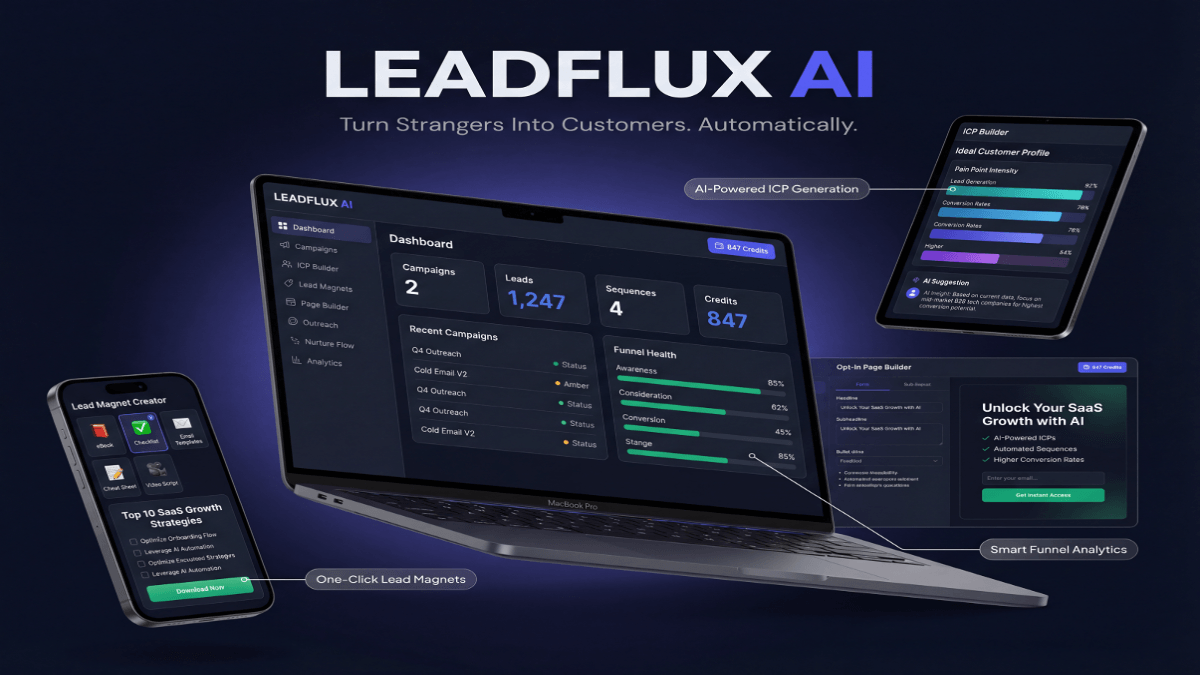
Stop Guessing. Start Converting.
LeadFlux AI Does the Heavy Lifting.
Tracking KPIs is only half the battle — you need a system that turns data into revenue. LeadFlux AI automatically identifies your highest-value prospects, scores leads in real time, and delivers conversion-ready pipelines so you can focus on closing deals, not chasing dead ends.
See How LeadFlux AI WorksSegments excel for engagement-based grouping. Create segments for engaged subscribers who opened emails in the last 30 days versus inactive subscribers who haven’t engaged in 90 days. This lets you send re-engagement campaigns to cold contacts without annoying your active audience.
Build segments for customer lifecycle stages. Separate leads from customers, trial users from paid users, new customers from long-term advocates. Each group needs different messaging, and segments ensure you’re always communicating appropriately.
Segments work wonderfully for reporting and analytics. Want to see how enterprise customers in the Northeast engage with your content compared to small businesses in the South? Create segments and compare metrics. This gives you actionable insights for optimizing campaigns.
The power of segments lies in their complexity. You can combine multiple conditions using AND/OR logic: “contacts in California OR New York AND company size greater than 100 employees AND tagged as webinar-attendee AND NOT tagged as customer.” This precision targeting maximizes relevance.
The Decision Framework: Choosing the Right Method
Now that you understand each tool, here’s the framework for deciding which one to use in any situation. Ask yourself these questions in order.
First, ask: Is this information about who someone is or what they’ve done? If it describes their identity (job title, company size, location), use a custom field. If it describes their behavior (downloaded resource, attended event, clicked link), use a tag.
Second, ask: Will this information change frequently? If data changes often based on actions (engagement status, campaign participation), tags work better. If it’s relatively static (industry, company name), use custom fields.
Third, ask: Do you need to use operators like greater than, less than, or between? If yes, you need a custom field with numerical or date values. Tags only work as yes/no switches.
Fourth, ask: Are you organizing contacts for a specific campaign or ongoing analysis? For one-time or temporary groupings, use tags. For permanent groupings you’ll reference repeatedly, create a segment.
Finally, ask: Do you need dynamic groups that update automatically? If yes, you need segments built from your tags and custom fields. If you just need to mark or store information, stick with tags or custom fields.
| Use Case | Best Method | Why It Works | Example |
|---|---|---|---|
| Track webinar attendance | Tag | Temporary behavioral marker | Tag: “webinar–q1-attended” |
| Store company size | Custom Field | Static demographic data | Field: “employees” = “50-100” |
| Target engaged leads | Segment | Dynamic group needing updates | Opened email in last 30 days + clicked link |
| Mark hot leads | Tag | Temporary sales status | Tag: “hot-lead” |
| Record industry type | Custom Field | Permanent classification | Field: “industry” = “Healthcare” |
| Group trial users | Segment | Lifecycle stage requiring specific campaigns | Custom field “status” = “trial” AND signup date within 14 days |
Numbers tell the story, but context determines what to do with it. Apply these benchmarks relative to your industry and stage.
Common Mistakes and How to Avoid Them
Even experienced marketers make critical mistakes when organizing contacts. These errors create data chaos that takes months to untangle.
The biggest mistake is using tags for everything. New users discover tags first because they’re simple and unlimited. Soon they have 500 tags with inconsistent naming, duplicates, and no clear organization system. This makes automation rules impossible to manage and reporting meaningless.
Another common error is creating too many custom fields. Since most platforms limit custom fields or charge for them, creating fields you’ll never use wastes money and clutters your interface. Only create custom fields for data you’ll actively use in segmentation or personalization.
Many marketers create static segments when they should use dynamic ones. They manually add contacts to segments and forget to remove them when criteria change. This defeats the entire purpose of automated segmentation and creates inaccurate targeting.
Poor naming conventions destroy data organization. Tags like “hot,” “Hot Lead,” “hot-lead,” and “HOT_LEAD” all mean the same thing but create four separate tags. Establish naming rules before you start: lowercase, hyphens instead of spaces, descriptive not vague.
Not documenting your system is another killer mistake. Six months from now, you won’t remember what “tag-x47” means or why you created it. Maintain a simple spreadsheet documenting every tag, custom field, and segment with its purpose and usage.
Combining Tags, Custom Fields, and Segments for Maximum Power
The real magic happens when you combine all three methods strategically. They’re not competing tools—they work together to create sophisticated marketing automation.
Start by establishing your custom fields for demographic and firmographic data. These form your foundation: company size, industry, location, job title. This data rarely changes and powers your basic segmentation.
Layer tags on top to track behavior and engagement. As contacts interact with your content, tag their actions: downloaded whitepaper, attended webinar, requested demo, visited pricing page. These tags create a behavioral profile.
Build segments that combine both. Create a “Sales-Ready Leads” segment: company size greater than 50 employees (custom field) AND industry equals “Technology” (custom field) AND has tag “requested-demo” AND has tag “visited-pricing-page.”
Use segments to trigger automation workflows. When someone enters your “Trial-Expiring-Soon” segment, trigger an email sequence encouraging upgrade. When they leave that segment (because they upgraded), the sequence stops automatically.
This layered approach gives you incredible precision. You can send highly personalized campaigns to micro-segments while maintaining clean, organized data. A contact in your “Enterprise-Hot-Leads-Northeast” segment receives completely different messaging than someone in “Small-Business-Cold-Leads-Southwest.”
The key is starting simple and scaling strategically. Don’t try to implement 50 tags, 20 custom fields, and 30 segments on day one. Begin with your most important data points and expand as you prove value.
Setting Up Your Contact Organization System
Ready to implement this framework? Follow this step-by-step process to set up a clean, scalable contact organization system.
Step one: Audit your current data. Export your contact list and analyze what information you actually have. Identify which data points appear consistently and which are mostly empty. This shows you what’s realistic to track and segment.
Step two: Define your essential custom fields. Based on your business model, identify 5-10 custom fields you absolutely need. B2B companies typically need company name, industry, company size, job title, and location. E-commerce businesses need purchase history, total spent, and product preferences.
Step three: Create your tag taxonomy. Develop naming conventions and categories for tags. Use prefixes to organize: “campaign-” for campaign tags, “behavior-” for actions, “interest-” for content preferences, “status-” for lead stages. This creates instant organization.
Step four: Map your customer journey. Document every stage from awareness to advocacy. Identify which tags you’ll use to mark progression through stages and which custom fields define characteristics at each stage.
Step five: Build your core segments. Create 5-10 segments you’ll use regularly: engaged subscribers, inactive subscribers, hot leads, customers, trial users, and any industry or size-based segments critical for targeting.
Step six: Document everything. Create a central reference document listing every tag with its purpose, every custom field with its definition, and every segment with its criteria. Share this with your team and update it religiously.
Step seven: Set up automation rules. Configure your marketing automation to add tags based on specific actions: form submissions, email clicks, page visits, purchases. This ensures consistent tagging without manual work.
Step eight: Test your system. Create test contacts and run them through your processes. Verify that tags apply correctly, custom fields populate accurately, and segments update as expected. Fix issues before launching to your full list.
Step nine: Schedule regular audits. Set calendar reminders to review your tags, custom fields, and segments quarterly. Remove unused tags, consolidate duplicates, and update documentation. This prevents the chaos from creeping back.
The initial setup takes time, but you’ll save hundreds of hours later. Clean data organization makes every marketing task easier: building campaigns, analyzing results, and scaling your automation.
Real-World Examples of Effective Contact Organization
Let’s look at how real businesses use tags, custom fields, and segments together to drive results.
A SaaS company selling project management software uses custom fields for company size, industry, and current tools used. They tag behavioral actions: “viewed-pricing,” “started-trial,” “completed-onboarding,” “invited-team-members.” Their segments include “High-Intent-Enterprises” (company size 100+ employees with “viewed-pricing” and “started-trial” tags) and “At-Risk-Trials” (trial status with no activity in 5 days).
An e-commerce retailer uses custom fields for location, customer lifetime value, and last purchase date. Tags track product interests: “interested-in-running-shoes,” “interested-in-yoga-gear,” “abandoned-cart.” Segments like “High-Value-Repeat-Customers” (lifetime value over $500 and purchased in last 60 days) receive exclusive offers, while “Cart-Abandoners-First-Time-Visitors” get aggressive discount campaigns.
A B2B consulting firm uses custom fields for industry, company revenue, and decision-maker role. They apply tags for content engagement: “downloaded-roi-calculator,” “attended-workshop,” “requested-proposal.” Their “Sales-Ready-Consulting-Leads” segment combines revenue over $10M, has “attended-workshop” tag, and “requested-proposal” tag. These leads get immediate sales outreach.
A membership site uses custom fields for membership tier, join date, and renewal date. Tags track engagement: “logged-in-this-week,” “completed-module-1,” “attended-live-call.” Segments like “At-Risk-Members” (no “logged-in-this-week” tag for 30 days and renewal date within 60 days) trigger re-engagement campaigns before cancellation.
These examples show how combining all three methods creates precision targeting impossible with any single approach. The companies achieve higher conversion rates because their messaging matches exactly where each contact sits in their journey.
Organizing your contacts with tags, custom fields, and segments isn’t just busywork—it’s the foundation of effective marketing automation. Get this right from the start, and everything else becomes easier. Start with this decision framework, implement systematically, and watch your campaigns become more targeted, your automations more sophisticated, and your results more impressive.
For more strategies on organizing your marketing automation, explore our guide on email segmentation best practices and lead scoring systems. To dive deeper into CRM organization, check out resources from HubSpot Academy and Salesforce Trailhead for platform-specific implementation guidance.